.svg)

.svg)

How Do I Use My TruView Virtual Tour?
A TruView Virtual Tour is an immersive site visualization and collaboration tool that eliminates the need for complex CAD or BIM modeling software. You can use your TruView virtual tour by opening the link provided by GPRS and navigating through the site using your mouse or touchscreen to pan, zoom, and move between scan points. The tour lets you view high‑resolution imagery, take basic measurements, review annotations, and access any tags or notes added by the GPRS team. It serves as a simple way to remotely explore your site, verify conditions, and share visual documentation with your project team or stakeholders.
What is a TruView in 3D Laser Scanning?
Leica TruView is the industry leader for easily and intuitively sharing point cloud data, and virtual walkthroughs for a Windows PC. Leica provides this software free of charge and offers two formats for the software: a portable option that can be placed on a USB drive which does not require installation, and a standard desktop installation that installs on a Windows PC. Both versions have specific video card and hardware requirements that must be met to function properly.
TruView utilizes the Leica LGSX file format which allows for a large amount of data in a smaller file size than offered in other file formats. It allows imagery, dimensional information, and point cloud data to be hosted in one file, making it easy to download and share.
How is a TruView Generated?
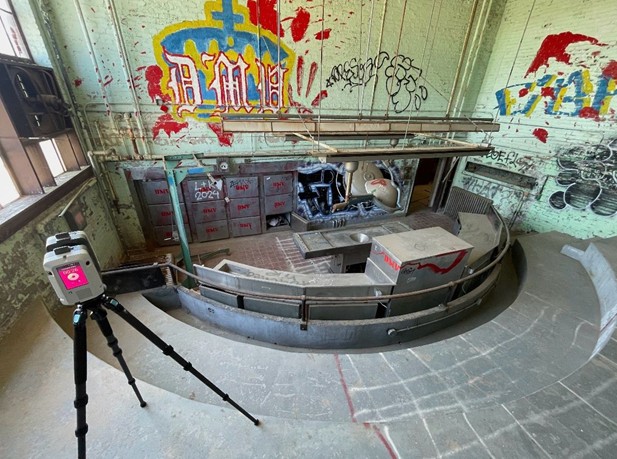
During the 3D laser scanning process, in addition to capturing millions of 3D data points (the point cloud), the laser scanner also captures a 3D panoramic image (or TruView) at each scan position. A TruView is a high-resolution panoramic image that can be overlayed on top of the point cloud, making it easier to understand the spatial relationships within the scanned area.
GPRS Insight: The TruView is a "virtual street view" from each position where the laser scanner was set up during the 3D scanning process. A TruView allows our clients to navigate through the point cloud data as if they were standing at that specific scanner location, providing a visual context to the point cloud.
How Does GPRS Create a TruView?
The GPRS CADD/BIM Team imports the raw point cloud data into Leica Cyclone REGISTER 360 for alignment, cleaning, and processing. During registration, the TruView HDR image is mapped onto the point cloud for photorealistic visualization and is georeferenced for precise location accuracy. Then, the registered scan data is converted into a Leica TruView LGSX format to open in the TruView Viewer software.

What is TruView Virtual Tour Software?
TruView is a free software from Leica Geosystems that allows users to share reality capture data from 3D laser scanners, such as point clouds, design models, mark-ups, and more.
TruView is available as both an online web viewer and an installed desktop application.
GPRS Insight: A TruView is a user-friendly platform to explore and collaborate on 3D project data, without needing advanced CAD skills or complex 3D modeling software.
What Can Users Do Inside Leica TruView Viewer?
The TruView Viewer is a software from Leica that allows users to open, view, measure, and annotate reality capture data, such as laser scan point clouds, AutoCAD files, and DWG files, from any computer or web browser without needing specialized software. The file sets must be made by Leica Cyclone TruView Publisher.
Leica TruView allows you to explore and interact with your 3D laser scan data in a virtual environment.
GPRS Insight: Users can navigate through the point cloud by "walking" through the different TruViews, essentially moving from one scanner position to another.

How to Install TruView Software and Files
If you received a TruView as part of your project deliverables, then continue reading for how to download and use the TruView software and files.
The TruView file format is LGSX. This data contains the 3D Panoramic view of the scan data for each scanner location. You will need to use either the TruView Portable (no installation required) or the full TruView Software Installation to view the LGSX files.
Click here to download Leica TruView from our servers (see options available below).
Option 1 - TruView Portable is a viewer that does not need to be installed and can be placed on a USB stick or drive and transferred with the LGSX data.
Option 2 - TruView Install is a standard Windows software that can be installed and run to view the LGSX data. (This is the recommended option). If you have a 3D VR headset, you can also download the TruView VR software from this location to utilize the VR interface.
Installation and Performance Optimization Guide
- Hardware Check: Ensure your machine meets the requirements: Windows 10 or 11, at least 8GB RAM, dedicated video card with 1GB memory.
- Download: Access TruView via the link above. Choose between portable or full installation options on Google Drive. Download the files one at a time.
- Installation: For full installation, unzip the downloaded file, run the .exe file, and click ‘yes’ for admin rights. Follow the prompts, ensuring NET Framework 3.5 is enabled.
- Optimization: If your laptop has dual video cards, you can follow this procedure. Set TruView to utilize the high-performance graphics card. Right-click Desktop > Display Settings > Graphics > Browse for TruView.exe file > Add > Options > High Performance > Save.
- Testing: Confirm TruView is using the high-performance card by checking the task manager. Right-click the taskbar in Windows > Task Manager > Processes > Verify GPU usage.
- Troubleshooting: If issues persist, update graphics drivers or consider installing TruView on a different machine that matches the hardware requirements.
What are the Functionalities of the Leica TruView Viewer?
- View Project: The TruView Viewer allows users to access and navigate through 3D point cloud and HDR imagery captured by the laser scanner. Users can move through the scanned environment using pan, zoom, and rotate controls to inspect specific areas.
- Measurement Tools: Users can extract 3D coordinates to take accurate measurements of distances, angles, and dimensions directly within the virtual model.
- Markup Annotations: To aid collaboration, users can add annotations, comments, markups, and hyperlinks directly on the point cloud, making it easy to share insights.
- GeoTag Integration: Within a point cloud, specific locations can be linked to geographical coordinates, like latitude and longitude, through "GeoTags", allowing additional information about that location to be attached to each point, essentially creating a detailed map of the scanned area with extra details beyond just the 3D structure itself.
- Overlay CAD/BIM Data: CAD and BIM models can be integrated into to the TruView to compare existing conditions with design plans for validation. With the smart model align tool, users can easily align BIM models to the point cloud.
- Floor Flatness Analysis: Users can apply elevation color mapping or contour analysis and use measurement tools to assess deviations in surface levels.
- Pipe Snapping: Users can apply pipe snapping measurement tools in the distance measurement menu, including snap to pipe edge and snap to centerline.
- Pipe Diameter Measuring Tool: TruView offers a pipe diameter measurement when a pipe is selected.
- Virtual Reality (VR) Experience: TruView allows users to explore the point cloud in an VR environment using Mixed Reality headsets, reducing the need for a site visit. Users can enter a fully immersive VR experience directly from the desktop application. The tool provides true-to-life scale visualization, integrating colorized point clouds and models to inspect designs, test-fit equipment, or access hard-to-reach areas. Users can walk, fly, or teleport through projects, perform measurements, and collaborate in real time.
- GeoTag Settings: Users can color GeoTags by category for easier visual identification. Users can either batch change all GeoTags to one color or color them by category based on their assigned properties. The GeoTag occlusion slider controls how a Geotag is drawn when that GeoTag is partially hidden behind something else. Users also have the option to snap to GeoTags when measuring.
- Verification Reports: The verification report is used to track changes that have been made to the project, such as modifications to the registration or the addition of project assets or GeoTags.
- Export and Share: Share your project with stakeholders via web links, GeoTags, snapshots, or downloadable files for remote access and collaboration.
How to Make the Most of TruView Software and Files
- Open TruView by either double-clicking on the TruView application or dragging and dropping the LGSX file onto the TruView interface.
- Upon opening the file, you'll be presented with the sitemap view, which displays each scan location as a red dot. Zoom in and out using the middle button wheel on your mouse.
- To pan around the sitemap view, press and hold the right click on your mouse, then drag left to right.
- Double-click on a red dot to enter the first-person (bubble) view of that scan location. This view provides a 360-degree perspective of the scanned area.
- Navigate between scan locations by double-clicking on other red dots on the sitemap view.
- In the first-person view, utilize tools such as the dimension tool to take measurements between points in the scan data.
- Adjust visualization settings by accessing the panel on the right side of the interface. You can toggle point cloud data, change color modes, and control visibility options.
- Use the site maps feature on the left side to navigate between different levels or sections of the scan data.
- Take advantage of additional tools such as clipping boxes to focus on specific areas of interest within the scan data.
- Take screenshots of your navigation within TruView using the WIN + SHIFT + S.
If you encounter any issues or need assistance, access the TruView help documentation by clicking on the question mark icon in the upper right of the interface.
Do TruViews Have Any Limitations?
TruViews have limited functionality, users looking to alter designs should consider using AutoCAD software. AutoCAD is a more advanced, technically accurate software application that aids construction professionals, designers, engineers, and architects in conceptualizing designs and drawings. With AutoCAD, users can create floor plans, sections, walls, windows, doors, and other layouts. AutoCAD is not as easy to use as the TruView Viewer and there are subscription costs.
GPRS 3D Laser Scanning Services
GPRS can create TruViews for clients to view and share reality capture data. Our clients can easily navigate a point cloud, measure, markup, and visualize design models against real-world conditions.
GPRS provides comprehensive and quality scan-to-BIM services for engineering, construction, and architectural firms across the United States.
Our in-house CADD/BIM Team is highly trained and experienced in 3D laser scanning, CAD and BIM software, plus we have a deep understanding of the construction process. We have optimized workflows for importing laser scan data, registration, creating deliverables, QA/QC checks, and transferring data to clients.
The CADD/BIM Team can produce custom deliverables for your project, ranging from point cloud data, 2D CAD drawings, 3D BIM models, 3D mesh models, TruViews, and 3D virtual tours.
GPRS Scan-to-BIM services enable architecture, engineering, and construction (AEC) professionals to efficiently capture, model, design and construct projects.
GPRS helps clients to Visualize The Built World®.